
Standing Desk Mats, Monitor Arms, and Cable Trays: The Accessories That Actually Earn Their Keep
- 04 Jun, 2026
- Guides
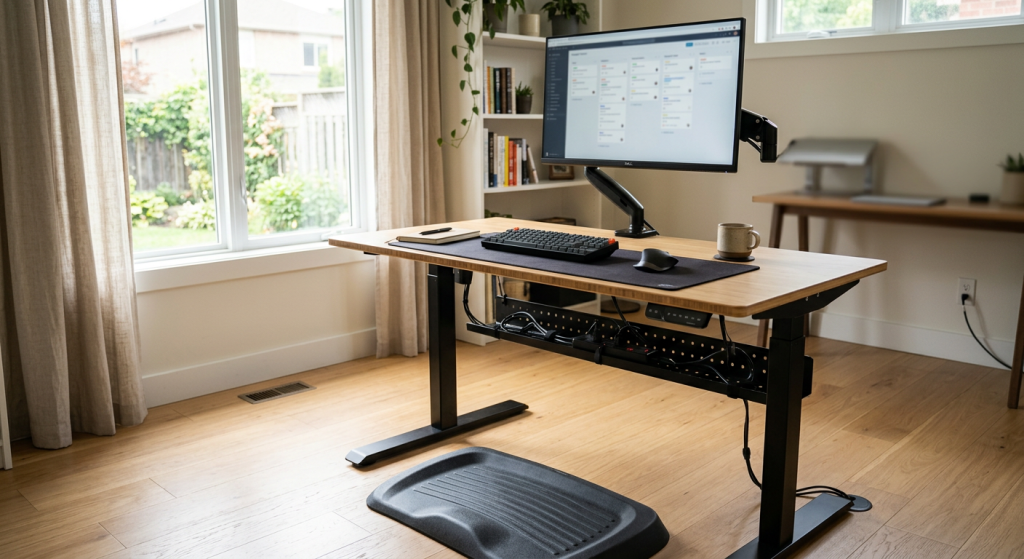
Three accessories decide whether a sit-stand desk becomes a daily ergonomic tool or an expensive height-adjustable shelf: a proper anti-fatigue mat, a real monitor arm, and a cable tray that actually moves with the desk. Skip any one of them and the desk underperforms — users stop standing, necks crane downward, and cables snag every time the desk lifts. The good news? All three combined typically cost less than 15% of the desk itself, and they’re the difference between “I love this thing” and “I never use it.”
Why these three accessories — and not the dozen others
Walk into any office supply catalog and you’ll see fifty “must-have” desk accessories. Most are noise. The three covered here matter because each one solves a problem the desk itself creates.
A sit-stand desk introduces standing time — your feet pay the price without a mat. It moves vertically — your cables either come with it or get yanked out. And it usually comes with more usable surface area than a fixed desk, which is wasted if monitors still sit on factory stands eating up that real estate.
Everything else — desk pads, drawer organizers, headphone hooks — is preference. These three are functional infrastructure. We’ve seen entire standing desk rollouts fail because procurement bought the desks and called it done, only to discover six months later that adoption dropped because feet hurt and the dangling charger fell behind the desk every time someone raised it.
Anti-fatigue mats: density and shape matter more than thickness
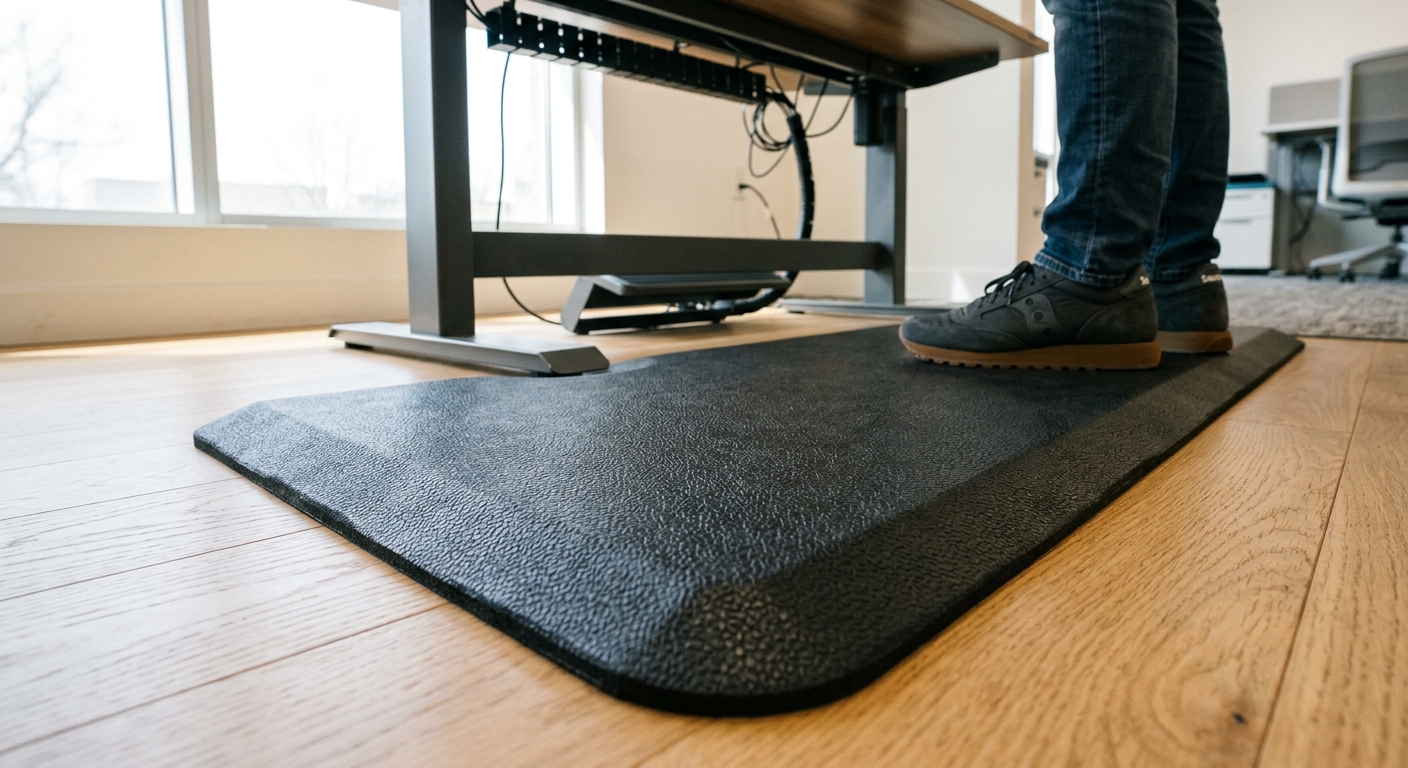
Most people buy mats by thickness. That’s the wrong metric. A 25mm soft foam mat compresses to almost nothing under your bodyweight — you may as well stand on the floor. A 17mm high-density polyurethane mat with the right rebound feels supportive for hours.
What to actually look for
- Density (firmness): Aim for polyurethane in the 55–75 ILD range. Cheap PVC and EVA mats bottom out fast.
- Beveled edges: A mat with sharp 90° edges is a tripping hazard and a chair-roll-killer. Beveled edges under 20° let you roll on and off when you sit back down.
- Surface texture: Smooth mats are slippery in socks. A subtle texture grips without catching dust.
- Contoured vs. flat: Contoured mats with calf bumps and a center mound encourage micro-movements — your weight shifts every few minutes instead of locking into one stance. For users who stand more than 90 minutes a day, this is worth the upcharge.
Real-world example
A 22-person design studio we worked with bought $30 foam mats with their desks. Within a month, half the team had pushed them aside. We swapped them for contoured polyurethane mats with beveled edges — usage of the standing function jumped from roughly 12 minutes per day per user to over 50. Same desks. Same people.
Skip the mat if…
You only stand for short stretches (under 30 minutes a day). At that volume, your hard floor is fine, and the mat becomes a chair-rolling obstacle.
Monitor arms: the accessory that pays for itself fastest
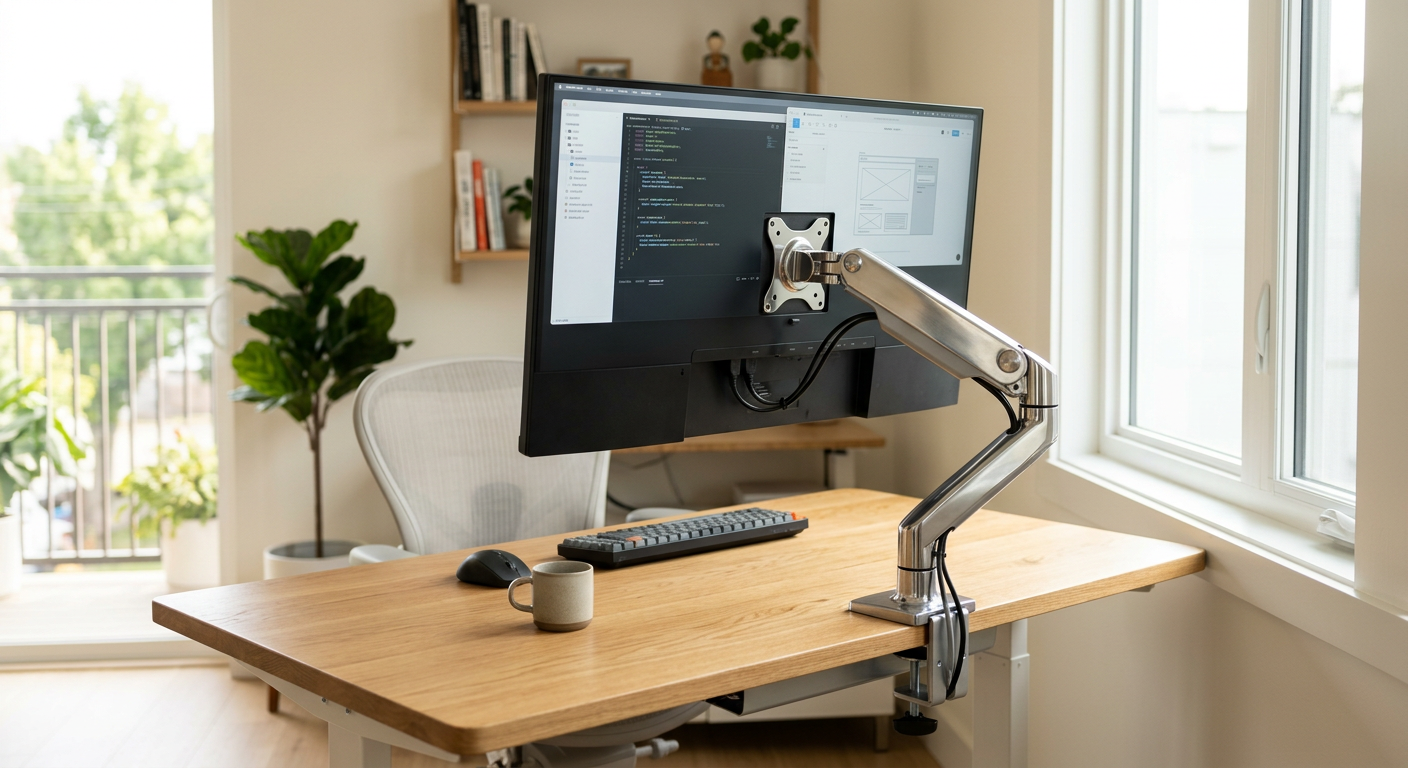
If you buy only one of the three, buy this. A monitor arm fixes three problems at once: it frees roughly 60–80% of the desk surface that monitor stands occupy, it positions the screen at correct eye height (top of screen at or just below eye level), and it lets you push the monitor back during deep focus or pull it close for detail work.
Specs that actually matter
- Weight rating: Don’t just check max — check the supported range. An arm rated 4–10 kg won’t hold a light 3 kg monitor steady; the gas spring will drift upward.
- VESA pattern: 75×75 and 100×100 are standard. Curved ultrawides over 34” sometimes need 200×100 — verify before ordering.
- Reach and depth: Look for at least 450mm of horizontal reach if you have a deep (750mm+) desk.
- Clamp vs. grommet mount: Clamp is faster to install; grommet is cleaner if your desk has a pre-drilled hole. Either way, confirm desktop thickness — many arms cap at 60mm.
- Single vs. dual arm: A dual arm is not just two singles bolted together. The crossbar shares load and keeps both monitors at consistent height. Worth it if you run identical displays side by side.
The mistake we see most often
Buying the cheapest arm with the highest weight rating. Those arms use stiff mechanical springs that require two hands and a grunt to reposition. A good gas-spring arm moves with one finger. If you have to fight it, you’ll stop adjusting it — and the entire ergonomic benefit disappears.
For executive setups, this is non-negotiable. See our breakdown of executive office design for how arm placement affects sightlines during video calls.
Cable trays: the unsexy accessory that saves the entire setup
A standing desk that travels 65cm vertically with cables flapping behind it will eventually unplug itself, snag on something, or pull a power strip off the wall. Cable management on a sit-stand desk isn’t aesthetic — it’s functional.
The three types and when each works
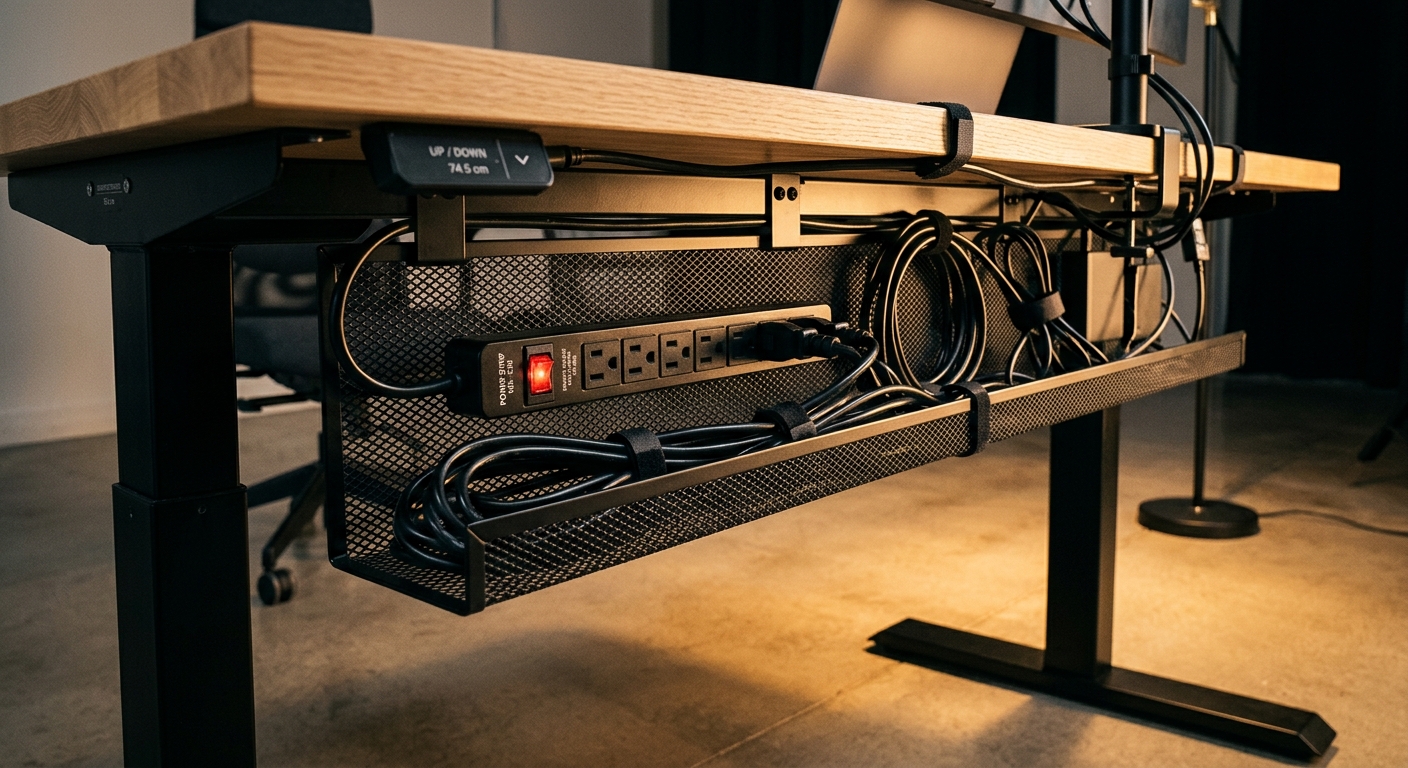
- Under-desk tray (most common): A metal mesh or solid basket bolted to the underside. Holds a power strip plus 6–10 cables. Works for 90% of desks.
- Vertical cable spine: A flexible accordion sleeve or articulated chain that runs from the desk edge to the floor. Required for desks pushed against a wall or in glass-walled offices where the cable drop is visible.
- Channel-style: A solid plastic or aluminum channel mounted at the back edge. Cleaner look, but harder to add cables later.
Sizing it right
Count your devices, then add two. Most users start with monitor power, monitor data, laptop dock, and a charger — and within six months they’ve added a webcam, desk lamp, second monitor, and phone charger. A tray that fit perfectly at install becomes a tangled mess.
For tray length: it should span at least 60% of the desk width. Anything shorter forces cables to bunch at one end, which torques the power strip when the desk rises.
Don’t forget the slack loop
Even with a tray, cables that run from desk to wall need a slack loop equal to the full travel range of the desk plus 15cm. Measure from the desk’s lowest position with the cable taut, then add the height differential. We’ve seen desks rip ethernet ports out of walls because someone forgot this math.
How to budget for all three without overspending
For a quality setup that lasts a decade, here’s the realistic spend per workstation:
- Anti-fatigue mat: $70–$140 — beyond $140 you’re paying for branding, not performance
- Single monitor arm: $150–$280 for a gas-spring model worth keeping
- Dual monitor arm: $220–$400
- Cable tray + spine: $40–$90 combined
Total: roughly $260–$510 per desk. On a $700–$1,200 sit-stand desk, that’s a 30–50% accessory uplift, which sounds like a lot until you realize the desk itself underperforms without them.
Where to cut if budget is tight? The mat is the easiest to defer — users can add it later when they realize they need it. The arm and the tray should be in the original order, because retrofitting them later means re-routing every cable on the desk.
Procurement mistakes when ordering at scale
Buying these accessories for one desk is easy. Buying them for 80 desks across a new floor is where things go sideways.
The five we see repeatedly
- Mixing monitor arm brands across the floor. When IT moves a monitor between desks, the VESA bolts and clamp depths differ. Standardize on one model per office.
- Forgetting clamp clearance. If desks are pushed against a wall or partition, rear-clamp arms won’t fit. Verify minimum 75mm of clear space behind every desk.
- Underspeccing the cable tray on adjustable desks. A tray sized for static desks won’t accommodate the slack required for sit-stand travel.
- Buying mats in one size for everyone. A 5’2” user and a 6’4” user need different mat dimensions. Offer at least two sizes.
- Skipping installation labor in the quote. Monitor arms alone take 15–25 minutes each to mount and tune. On 80 desks, that’s 25 person-hours.
If you’re planning a rollout, our guide on measuring your office before ordering furniture covers the spatial side; pair it with this accessory checklist before signing the PO.
Pairing accessories with the right desk and chair
These accessories aren’t standalone — they only work if the foundation underneath is right. A monitor arm clamped to a wobbly desk amplifies the wobble. A mat in front of a chair with a broken seat tilt encourages bad standing posture as compensation.
Before adding accessories, audit the basics:
- Is the desk frame rated for the actual load (desktop + monitors + arm + your weight leaning on it)? Many entry-level frames are rated 70–80 kg total, which sounds like a lot until you add a 15 kg desktop, two 8 kg monitors, and a 6 kg arm.
- Does the chair allow proper sit-to-stand transitions, or is it so deep you have to scoot forward every time?
- Is the floor level? A 1° tilt over a 1.6m desk means a 28mm height difference end to end — enough to throw off monitor leveling.
If you’re still selecting the desk itself, browse our overview of different desk types for every office setting first. Choosing the desk and accessories together avoids the “we’ll add it later” trap.
The takeaway: spec the accessories with the desk, not after
The biggest predictor of whether a sit-stand desk gets used isn’t the desk itself — it’s whether the three supporting accessories arrived with it. A mat that actually supports your feet, a monitor arm that moves with one finger, and a cable tray sized for the desk’s full travel range. That’s the difference between a desk people love and a desk that gets cranked up once on day one and never again.
If you’re outfitting a single office or planning a multi-floor rollout, vision-furniture can spec the desk, mat, arm, and cable management as a single package — sized for your team, your floor, and your power layout. Get in touch with the specs of your space and we’ll send back a per-workstation quote with the accessory math already done.


